Fixing Slow Computers: Troubleshooting Slow Computer Performance Tips and Tricks

Updated: Sep 25
When your computer starts to drag, it can feel like everything slows down - your work, your games, even simple browsing. I’ve been there, and I know how frustrating it can be. The good news is that slow computer performance is often fixable with some straightforward steps. Whether you use your PC for work, gaming, or everyday tasks, I’ll guide you through practical tips to get your machine running smoothly again.
Fixing Slow Computers: Where to Start
Before diving into complex solutions, it’s best to start with the basics. Many times, slow performance is caused by simple issues that you can fix yourself. Here’s what I recommend:
Restart your computer: It sounds obvious, but rebooting clears temporary files and stops unnecessary processes.
Check for updates: Make sure your operating system and drivers are up to date. Updates often include performance improvements and bug fixes.
Close unused programs: Running many applications at once can slow your PC down. Use Task Manager (Ctrl + Shift + Esc) to see what’s consuming resources.
Free up disk space: A nearly full hard drive can cause lag. Delete old files, uninstall unused programs, or move data to an external drive.
These steps often solve minor slowdowns quickly. If your computer still feels sluggish, it’s time to dig deeper.

Why is my PC laggy and slow all of a sudden?
Sudden slowdowns can be puzzling. Here are some common reasons your PC might lag unexpectedly:
Background updates or scans: Antivirus software or system updates running in the background can use a lot of resources.
Malware infections: Viruses or spyware can drastically reduce performance by running hidden tasks.
Hardware issues: Failing hard drives, overheating, or insufficient RAM can cause sudden lag.
Software conflicts: Recently installed programs or drivers might not be compatible and slow your system.
Too many startup programs: If many apps launch when you start your PC, it can take longer to become responsive.
To identify the cause, check your Task Manager for unusual CPU, memory, or disk usage. Running a full antivirus scan is also a good idea. If hardware is the issue, you might notice strange noises or your PC getting hot quickly.
Deep Cleaning Your System for Better Speed
Once you’ve ruled out obvious causes, it’s time for a deeper clean. Here’s how to optimize your system:
Uninstall unnecessary software: Old or rarely used programs take up space and sometimes run background processes.
Clean up startup items: Use the Task Manager’s Startup tab to disable programs you don’t need at boot.
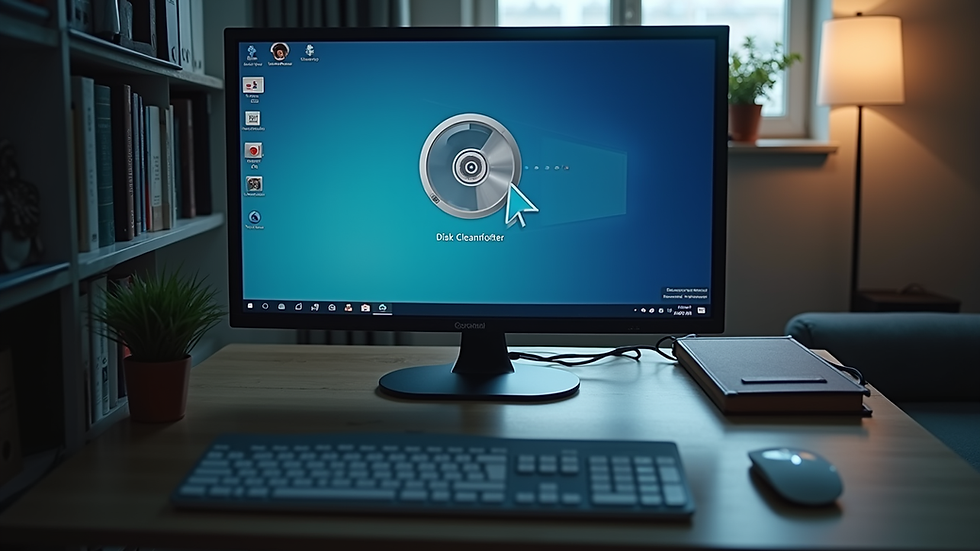
Run Disk Cleanup: This built-in tool removes temporary files, system cache, and other junk.
Defragment your hard drive (if you use an HDD): This rearranges fragmented data for faster access. Note: SSDs do not need defragmentation.
Check for malware: Use a trusted antivirus or antimalware tool to scan and remove threats.
Update drivers: Outdated or corrupt drivers can cause slowdowns and crashes.
These steps can significantly improve your PC’s responsiveness and stability.
Hardware Upgrades That Make a Difference
Sometimes, software fixes aren’t enough. Upgrading your hardware can breathe new life into an aging computer. Here are the most effective upgrades:
Add more RAM: Increasing memory helps your PC handle more tasks simultaneously without slowing down.
Switch to an SSD: Solid State Drives are much faster than traditional hard drives, reducing boot and load times.
Upgrade your CPU or GPU: For gamers or power users, a better processor or graphics card can improve performance.
Improve cooling: Overheating can throttle your CPU speed. Clean dust from fans and consider better cooling solutions.
Before buying new parts, check your PC’s compatibility and whether the upgrade fits your needs and budget.
Maintaining Your PC for Long-Term Speed
Fixing slow computers is not just about quick fixes. Regular maintenance keeps your system running smoothly over time. Here’s what I do to maintain my PC:
Regularly update software and drivers: Set updates to automatic or check monthly.
Schedule disk cleanups and scans: Use built-in tools or third-party apps to keep your system clean.
Monitor startup programs: Disable unnecessary apps that sneak in over time.
Keep your PC physically clean: Dust buildup inside your computer can cause overheating and slowdowns.
Backup important data: In case of hardware failure, having backups saves time and stress.
By following these habits, you reduce the chances of slowdowns and extend your computer’s lifespan.
When to Seek Professional Help
If you’ve tried all these tips and your computer is still slow, it might be time to get expert help. Professionals can diagnose hardware problems, perform advanced repairs, or recommend the best upgrades. Reliable repair services also ensure your data stays safe during fixes.
For those in Nairobi, finding a trusted local service can save time and money. Look for shops with good reviews, clear pricing, and knowledgeable staff. Sometimes, a quick visit to a professional can solve issues that take hours to troubleshoot on your own.
I hope these tips help you get your computer back to peak performance. Remember, troubleshooting slow computer performance is a process, but with patience and the right steps, you can enjoy a faster, smoother PC experience. Keep your system clean, updated, and well-maintained, and it will serve you well for years to come.
Comments