Slow Computer Fix Guide: Troubleshooting Slow Computer Performance

Updated: Sep 25
When your computer starts lagging, freezing, or taking forever to open programs, it can be frustrating. I’ve been there, and I know how much it slows down your day. The good news is that slow computer issues are often fixable with some simple steps. In this guide, I’ll walk you through practical ways to speed up your device and keep it running smoothly.
Slow Computer Fix Guide: Getting Started
Before diving into complex solutions, it’s important to understand the basics. Slow performance can come from many sources, including software, hardware, or even your internet connection. Here’s how you can start fixing the problem:
Restart your computer: Sometimes, a simple reboot clears temporary files and frees up memory.
Close unnecessary programs: Running too many apps at once can slow your system.
Check for updates: Make sure your operating system and software are up to date.
Run a virus scan: Malware can cause your computer to lag.
These steps are easy to do and often solve minor slowdowns. If your computer still feels sluggish, keep reading for more detailed troubleshooting.

Common Causes of Slow Computer Performance
Understanding what causes slowdowns helps you fix the problem faster. Here are some common reasons your computer might be running slowly:
Too many startup programs: Programs that launch automatically when you turn on your computer can use up resources.
Low disk space: When your hard drive is almost full, your computer struggles to work efficiently.
Fragmented hard drive: On older systems with traditional hard drives, files can become scattered, slowing access.
Outdated hardware: Older processors, limited RAM, or slow hard drives can bottleneck performance.
Background processes: Some apps run in the background without your knowledge, consuming CPU and memory.
Malware or viruses: Harmful software can degrade your system’s speed and security.
By identifying which of these issues affect your computer, you can apply the right fix.
How do I find out what is slowing down my computer?
Finding the exact cause of slow performance is easier than you might think. Your computer has built-in tools that show what’s using resources:
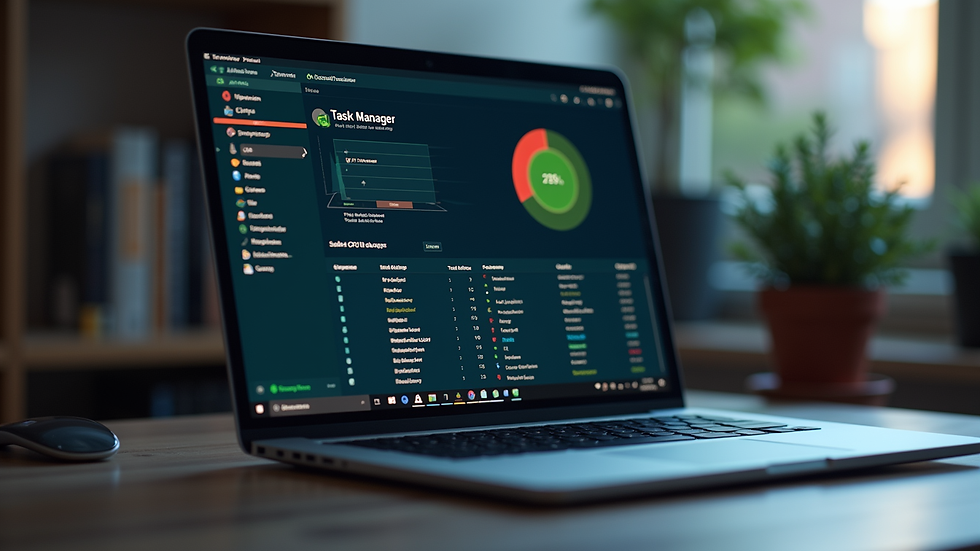
Task Manager (Windows)
Press `Ctrl + Shift + Esc` to open Task Manager.
Click the "Processes" tab to see which programs use the most CPU, memory, and disk.
Look for any apps consuming unusually high resources.
Activity Monitor (Mac)
Open Spotlight (`Cmd + Space`) and type "Activity Monitor."
Check the CPU and Memory tabs to identify resource-heavy processes.
Disk Space Check
On Windows, open "This PC" and check the available space on your drives.
On Mac, click the Apple menu > About This Mac > Storage.
Startup Programs
On Windows, open Task Manager and go to the "Startup" tab to disable unnecessary programs.
On Mac, go to System Preferences > Users & Groups > Login Items.
By regularly monitoring these areas, you can spot problems early and take action before your computer slows down too much.
Practical Steps to Speed Up Your Computer
Once you know what’s causing the slowdown, here are some effective ways to fix it:
1. Clean Up Your Hard Drive
Delete old files, downloads, and unused programs.
Use built-in tools like Disk Cleanup (Windows) or Storage Management (Mac).
Consider moving large files to an external drive or cloud storage.
2. Manage Startup Programs
Disable programs you don’t need to start automatically.
This frees up memory and speeds up boot time.
3. Upgrade Hardware
Adding more RAM can improve multitasking.
Switching from a traditional hard drive to a solid-state drive (SSD) dramatically boosts speed.
If your computer is very old, consider a replacement.
4. Scan for Malware
Use trusted antivirus software to scan and remove threats.
Keep your security software updated.
5. Adjust Visual Effects
On Windows, reduce animations and transparency effects in System Settings.
On Mac, minimize motion and transparency in Accessibility settings.
6. Keep Software Updated
Regular updates fix bugs and improve performance.
Don’t ignore system or driver updates.
7. Reinstall Your Operating System
If all else fails, a clean install can restore your computer to peak condition.
Back up your important files before doing this.
When to Seek Professional Help
Sometimes, slow computer issues require expert attention. If you’ve tried the above steps and your device is still sluggish, it might be time to consult a technician. Professionals can:
Diagnose hardware problems like failing hard drives or overheating.
Perform advanced virus removal.
Optimize your system settings for better performance.
Recommend the best upgrades for your needs and budget.
Getting help ensures your computer runs reliably and extends its lifespan.
Keeping Your Computer Fast Over Time
Speeding up your computer is not a one-time task. To maintain good performance, develop these habits:
Regularly update your software and drivers.
Run virus scans weekly or monthly.
Avoid installing unnecessary programs.
Clean your hard drive every few months.
Restart your computer regularly.
By staying proactive, you can avoid many common slowdowns and enjoy a smoother computing experience.
If you want to learn more about troubleshooting slow computer performance, this guide is a great place to start.
By following this slow computer fix guide, you can take control of your device’s speed and efficiency. Whether you use your computer for work, gaming, or everyday tasks, a fast system makes all the difference. Don’t let slow performance hold you back - take these steps today and enjoy a smoother, faster computer tomorrow.
Comments